Biggest Macbook Pro 14 2021 Buying Mistakes (And How to Avoid Them)
The MacBook Pro 14 (2021) is one of the most capable 14-inch laptops Apple has shipped: a bright, high-refresh mini‑LED display, improved ports, modernized MagSafe charging, and Apple silicon performance that redefined expectations for thin-and-light workstations. That combination made it extremely popular with professionals and power users—but it also created a market for avoidable mistakes. This article walks through the most common buying errors people make when choosing a MacBook Pro 14 (2021) and gives practical, real-world guidance to avoid them.
Why these mistakes matter
Buying a MacBook Pro 14 is typically a purchase decision that lasts several years. Unlike many PCs, key components—unified memory (RAM) and the on-board SSD—are not user-upgradeable after purchase. Choosing the wrong configuration or overlooking important real-world considerations can lead to frustration, stalled workflows, or expensive trade-offs later. The guidance below focuses on typical buyer priorities: performance, portability, storage, repairability, and long-term value.
Top buying mistakes and how to avoid them
Mistake 1 — Choosing the wrong chip for the workload
Issue: Buyers often pick the base M1 Pro configuration because it looks “fast enough” on paper, then discover it's a bottleneck under heavy multi‑stream video encoding, large-scale machine learning experiments, or massive Pro Tools sessions.
How to avoid it: Match the chip to the workload. The 14-inch launched with M1 Pro and M1 Max options: M1 Pro targets most pro workloads and offers excellent performance for compilation, photo editing, and typical video timelines; M1 Max adds more GPU cores and memory bandwidth for sustained, high-throughput GPU work and very large media projects. If the primary use is casual photo editing, office productivity, or coding with occasional builds, the lower‑end M1 Pro is a good balance. For sustained 4K/8K timelines, heavy compositing, or huge sample libraries, opt for M1 Max or the higher‑spec M1 Pro variant.
Mistake 2 — Underprovisioning unified memory (RAM)
Issue: Unified memory cannot be upgraded after purchase. Buyers who choose the base 16GB because “most apps don’t use more” often find themselves swapping, hitting virtual memory, or seeing performance drops when running many VMs, plugin-rich DAW sessions, or large Lightroom catalogs.
How to avoid it: Plan for peak usage, not current usage. Recommended baseline: 16GB for students, writers, and general productivity; 32GB for software developers who run containers/VMs, photographers with big catalogs, and music producers with many virtual instruments; 64GB (M1 Max) for heavy video, VFX, or datasets that sit in memory. Buy the RAM you need now—Apple’s memory is unified and non-upgradable.
Mistake 3 — Choosing too-small storage
Issue: Like memory, the internal SSD is not user-serviceable on these models. Some buyers put off paying for a larger SSD and later struggle with external drives, fragmented libraries, or slow backups.
How to avoid it: Estimate your storage growth for the laptop’s planned lifespan. For many professionals, 1TB is a practical minimum; photographers and video editors should consider 2TB or more, or be prepared to manage external fast SSDs. If budget is tight, budget for a fast bus-powered NVMe enclosure + SSD so external storage is viable, but remember external drives add complexity and potential failure points.
Mistake 4 — Ignoring ports and adapters
Issue: The 2021 redesign returned useful ports (HDMI, SD card slot, MagSafe, multiple Thunderbolt ports), but new workflows—external displays, capture devices, audio interfaces—still require specific cables and adapters. Buyers who assume “USB-C only” or who don’t check their accessories often scramble later.
How to avoid it: Inventory existing peripherals and note required ports. If a camera uses SD cards, the built-in card reader is convenient, but full-size SD vs microSD adapters matter. For multiple external displays, check whether the chosen chip supports the number and resolution of monitors you need (M1 Pro supports more external displays than the base M1 in older models). Plan cable wattage for high-demand charging and pick quality Thunderbolt 4/USB4 cables for performance.
Mistake 5 — Buying used without checking battery health and warranty transfer
Issue: The used market is attractive, but batteries with many cycles, replaced keyboards, or voided warranties are common. Buyers sometimes miss iCloud activation locks or the lack of transferable AppleCare.
How to avoid it: Inspect battery cycle count and maximum capacity (macOS System Report and Battery Health). Verify the seller’s AppleCare status or whether AppleCare can be purchased. Boot the MacBook to check for firmware issues, test all ports, run a camera/speaker/mic check, and confirm no activation lock is present. If possible, buy from reputable refurbishers who provide a return window and warranty.
Find top-rated Laptops & Computers products at great prices.
Shop Amazon →Mistake 6 — Overlooking sustained thermal performance
Issue: Benchmarks often report brief peak speeds, but real-world tasks like long renders or continuous compilations expose thermal limits. Some buyers are surprised that thin laptops need to balance thermal noise and power.
How to avoid it: Read multi-hour workload reports rather than single-run charts. For long sustained loads, prioritize the configuration with better thermal headroom (higher‑spec M1 Pro or M1 Max can sustain performance longer). Consider using a stand for better airflow and accept that fan behavior is part of delivering sustained performance.
Mistake 7 — Assuming the 14" is “too small” for serious work or “too big” for travel
Issue: Buyers pick a size based on instinct rather than their actual use. A heavier 16" might feel like more screen for the money, but a 14" often hits the sweet spot for portability without sacrificing pro features.
How to avoid it: Test physical ergonomics if possible. For frequent flying and mobile workflows, the 14" is exceptionally portable while still offering a pro-level screen and ports. If screen real estate is critical, plan for a reliable external monitor at a desk rather than defaulting to the 16" for every travel case.
Mistake 8 — Not considering software and virtualization needs
Issue: Some niche software (older Windows-only apps, legacy drivers) doesn’t run natively on Apple silicon. Buyers who rely on virtualized environments or Boot Camp workflows may hit limitations.
How to avoid it: Confirm compatibility with Rosetta 2 and native Apple silicon builds. For Windows-dependent workflows, plan to use virtualization (Parallels, UTM) with the understanding that ARM versions of Windows are required and x86 emulation may affect performance. Developers who require specific Linux distributions should test those distros on Apple silicon or consider alternatives.
Mistake 9 — Buying cheap chargers and cables
Issue: Inadequate or low-quality power delivery cables can result in slow charging, intermittent disconnects, or worse—damage to peripherals. People who rely on third-party chargers for lower cost may experience inconsistent performance.
How to avoid it: Use quality USB-C / Thunderbolt cables rated for the wattage and data speed needed. Prefer reputable chargers with proper PD profiles. If the MacBook came with a charger, keep it as the baseline; for faster charging during travel, choose a higher-wattage, reputable unit certified for PD and Thunderbolt compatibility.
Mistake 10 — Neglecting AppleCare and resale considerations
Issue: Skipping AppleCare to save money sometimes proves false economy after a repairable mishap. Conversely, buyers who fail to check transferable AppleCare on a used machine pay full repair costs.
How to avoid it: For pro uses where downtime costs money, AppleCare+ is worthwhile. On used machines, verify AppleCare transfer or budget for out-of-warranty repairs. Keep receipts and register the device if the buyer is the original owner; check serial numbers carefully on used purchases.
Detailed product review and analysis
Design and build
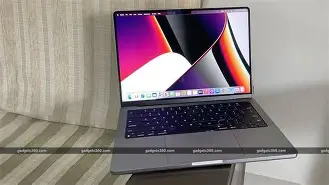
The MacBook Pro 14 (2021) returns a squared-off, industrial silhouette with a premium aluminum chassis. The keyboard and trackpad remain class-leading in feel and build quality. For travelers, the 14-inch footprint is a practical compromise between the 13-inch ultraportable class and the larger 16-inch workstation.
Looking for the best Laptops & Computers deals on Amazon?
Shop Amazon →Display
The mini‑LED Liquid Retina XDR display is a highlight: high peak brightness for HDR, excellent contrast, and ProMotion adaptive refresh up to 120Hz. This benefits color-critical photo and video work as well as smooth scrolling and UI responsiveness. Buyers should prefer the 14” if they need color accuracy in a portable package; pairing with an external reference monitor at a desk is common for heavy color grading.
Performance
Apple’s M1 Pro and M1 Max deliver impressive single‑thread and multi‑thread performance with high efficiency. Real-world benefits show up in fast app launches, snappy code builds, fluent editing timelines, and quiet fan profiles for many tasks. For GPU-heavy tasks, M1 Max expands GPU cores and memory bandwidth, delivering better sustained throughput on large exports and complex compositing.
Ports and connectivity
Unlike the previous generation's thin‑and‑few-port approach, the 14 provides HDMI, an SD card reader, three Thunderbolt 4/USB4 ports, MagSafe 3, and a headphone jack. This reduces dongle dependency but doesn’t eliminate it—buyers should still plan for appropriate cables and storage workflows.
Battery and thermals
Battery life is excellent for mixed productivity and media consumption, though heavy continuous workloads shorten run times—as with any high‑performance laptop. The machine balances temperature, fan noise, and power; for truly endless renders, an external desktop or farm remains more efficient.
Repairability and upgrades
The MacBook Pro 14 (2021) is not built for user upgrades: SSD and memory are part of the system architecture. Repairability is possible through authorized service providers, but buyers should assume the configuration they purchase is the configuration they will have for the device’s life.
Real-world use cases
- Photo editing — Lightroom and Photoshop run exceptionally well on the M1 Pro; a 32GB machine with a larger SSD speeds large catalog work.
- Video editing — For multicam 4K editing and color grading, M1 Pro handles many projects; M1 Max offers advantages for multi-layer 8K or heavy GPU effects.
- Software development — Fast compiles and multiple containers benefit from 16–32GB memory and a local fast SSD. For native Linux stacks, test tooling on Apple silicon first.
- Music production — Many plugin instances and large sample libraries push memory and storage; opt for larger RAM and fast internal SSD or reliable externalThunderbolt SSDs.
- Travel professionals and students — The 14” balances portability and power; base configurations are often sufficient unless content creation is the main work.
Pros & Cons
- Pros:
- Outstanding performance-per-watt for single- and multi-threaded tasks
- Excellent display with ProMotion and high dynamic range
- Useful I/O for a modern laptop (HDMI, SD card, MagSafe, Thunderbolt)
- Long battery life for typical productivity
- Solid build quality and best-in-class trackpad/keyboard
- Cons:
- Non-upgradeable RAM and SSD—buy what’s needed up front
- Higher-cost top configurations (M1 Max, large SSDs) are expensive
- Some specialist software and drivers may lag on Apple silicon
- Repair costs out of warranty can be high without AppleCare
- External expansion and some legacy peripherals still require dongles
Configuration comparison (typical choices)
| Configuration | CPU / GPU | Max Unified Memory | Good for | Recommended if |
|---|---|---|---|---|
| Base M1 Pro (entry) | 8‑core CPU, 14‑core GPU | Up to 16GB | Students, writers, general productivity, light photo editing | Needs portability and solid performance without heavy GPU or massive memory demands |
| Upgraded M1 Pro | 10‑core CPU, 16‑core GPU | Up to 32GB | Developers, photographers, moderate video editors | Runs multiple VMs, larger Lightroom catalogs, heavier multitasking |
| M1 Max | 10‑core CPU, 24/32‑core GPU options | Up to 64GB | High-end video, VFX, large datasets, pro audio with massive libraries | Needs maximum GPU/VRAM bandwidth and large unified memory for complex, sustained workloads |
Buying guide: checklist and decision flow
Step 1 — Define primary workflows
Make a short list of the apps and tasks that will define daily use. Distinguish between bursty tasks (occasional heavy exports) and sustained tasks (continuous renders). Base the chip and thermal considerations on sustained workloads.
Step 2 — Memory and storage planning
- Memory: 16GB for light-to-moderate use; 32GB for multi-VMs, significant photo/video projects, or heavy plugin use; 64GB for the most demanding pro workflows. If in doubt and budget allows, err higher—RAM is non-upgradeable.
- Storage: Estimate current usage and add projected growth for the laptop’s lifetime. If working with large media, choose internal capacity large enough to keep active projects on internal SSD for performance; otherwise plan for high-performance external SSDs and a robust backup strategy.
Step 3 — Ports and peripherals
Inventory cameras, audio interfaces, external monitors, SD cards, dongles, and chargers. If using multiple external displays, double-check the chosen configuration’s display support and desired resolutions. Buy quality cables and a compact dock if many peripherals are used at a desk.
Step 4 — Decide between new, refurbished, and used
- New: Best for warranty, predictable condition, and AppleCare purchase.
- Refurbished (Apple-certified): Often the best value, with warranty and quality checks.
- Used: Acceptable if inspected carefully for battery cycles, screen condition, port function, and activation lock status. Confirm transferability of AppleCare if it exists.
Step 5 — AppleCare and support planning
For professionals who cannot afford downtime, AppleCare+ is a strong consideration. For casual users, weigh the cost against the likelihood of accidental damage and repair expenses. If buying used, verify whether AppleCare coverage remains and whether it is transferable.
Step 6 — Practical purchasing checklist
- Confirm chosen chip and memory meet the heaviest planned workload.
- Choose SSD capacity with growth in mind; buy external fast storage if needed.
- Test or confirm all ports (HDMI, SD, Thunderbolt, MagSafe) if the seller allows.
- Check battery cycle count and condition (maximum capacity); prefer lower cycle counts for used buys.
- Verify macOS version compatibility for essential software; check native vs Rosetta 2 builds.
- Retain original power adapter and verify it matches the configuration’s charging needs.
- Buy AppleCare or third-party coverage if uptime is critical.
Final thoughts
The MacBook Pro 14 (2021) remains a compelling choice for people who need a portable machine that doesn’t compromise on pro features. The most common buyer mistakes stem from a mismatch between long-term needs and the non-upgradeable nature of memory and storage, misreading thermal behavior for sustained workloads, and overlooking real-world accessory and compatibility details.
Careful planning—matching chip, memory, and storage to likely future demands; inspecting used units for battery and warranty status; and accounting for ports and power delivery—will prevent most regrets. For many buyers the best approach is pragmatic: pick the configuration that covers the heaviest expected use, invest appropriately in AppleCare if downtime is costly, and maintain a simple backup and external storage plan. Doing that turns the MacBook Pro 14 into a dependable, years‑long workhorse rather than a short-lived compromise.